
Bluetooth Disappeared from Device Manager? Here’s How to Fix It
Updated: Jul 15
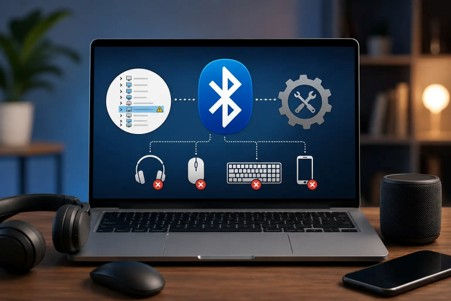
Bluetooth disappeared from Device Manager can feel confusing, especially when your wireless mouse, keyboard, headphones, or phone suddenly stops connecting.
One day, Bluetooth works normally. The next day, the Bluetooth icon is gone, the Bluetooth toggle is missing, and Device Manager does not show your Bluetooth adapter like it used to.
If you are searching for “Bluetooth disappeared from Device Manager” or “Bluetooth missing from Device Manager,” this guide will walk you through the most common causes and the safest troubleshooting steps to try first.
At MicroSec®, we help users with Windows Bluetooth issues, driver problems, device connection errors, and computer troubleshooting remotely. This guide is written in simple language so you can understand what may be happening before you ask for help.
If your Bluetooth is missing, not connecting, or keeps failing, you can also read our full guide on Bluetooth not working on PC for broader troubleshooting steps.
What Does It Mean When Bluetooth Disappears from Device Manager?
When Bluetooth disappears from Device Manager, Windows may not be detecting the Bluetooth adapter properly.
This can happen because of:
A corrupted Bluetooth driver.
A Windows update conflict.
A disabled Bluetooth adapter.
A missing manufacturer driver.
A power management issue.
A BIOS or UEFI wireless setting.
A hardware problem with the Bluetooth adapter.
Important: this does not always mean your computer is broken.
In many cases, Bluetooth is missing because Windows cannot communicate with the Bluetooth driver correctly. Microsoft also recommends checking drivers, Windows updates, and Bluetooth troubleshooting tools when Bluetooth disappears or stops working in Windows.
Quick Check: Is Bluetooth Really Missing?
Before reinstalling drivers, first check if Bluetooth is hidden.
Step 1: Open Device Manager
Press:
Windows + X → Device Manager
Then look for:
Bluetooth
If you see Bluetooth, click the arrow beside it and look for your adapter. It may include names like:
Intel Wireless Bluetooth.
Realtek Bluetooth Adapter.
Qualcomm Bluetooth.
Broadcom Bluetooth.
Generic Bluetooth Radio.
Microsoft notes that Bluetooth adapters in Device Manager may also include the word “radio.”
Step 2: Show Hidden Devices
In Device Manager:
View → Show hidden devices
Now check again for Bluetooth.
If Bluetooth appears greyed out, Windows may remember the device, but it may not be actively detecting it.
If Bluetooth still does not appear at all, continue with the steps below.
Why Is Bluetooth Missing from Device Manager?
Here are the most common reasons we see when Bluetooth is missing from Device Manager on Windows PCs.
1. A Windows Update Changed or Broke the Bluetooth Driver
Sometimes, after a Windows update, Bluetooth may stop appearing because the existing Bluetooth driver is no longer working correctly.
This is common when:
Bluetooth worked yesterday.
Windows was updated recently.
The Bluetooth toggle disappeared.
Device Manager no longer shows Bluetooth.
Your wireless mouse or headphones stopped connecting.
In this case, updating or reinstalling the Bluetooth driver is usually the best first step.
Bluetooth issues after Windows updates are often part of larger Windows system problems. If multiple features stopped working at the same time, our Computer Repair Service can diagnose the underlying Windows issue and help restore normal system functionality.
2. The Bluetooth Driver Is Missing or Corrupted
Bluetooth needs a driver to work properly.
If the driver is missing, outdated, or corrupted, Windows may not show Bluetooth in Settings or Device Manager.
You may notice:
No Bluetooth toggle in Settings.
No Bluetooth section in Device Manager.
Unknown device listed under “Other devices”.
Wireless devices are no longer pairing.
Bluetooth headphones, mouse, or keyboard not detected.
Microsoft recommends using Device Manager and Windows Update to update Bluetooth drivers, and also checking the PC manufacturer’s website if Windows does not find the newest driver.
3. Bluetooth Hardware Is Disabled
Some laptops allow Bluetooth or wireless adapters to be disabled through:
BIOS or UEFI settings.
Keyboard shortcuts.
Physical wireless switches.
Manufacturer control software.
This is more common on certain business laptops or older systems.
If Bluetooth disappeared after a BIOS update, battery reset, repair, or major Windows update, the wireless adapter setting may need to be checked.
4. Power Management Turned Off the Bluetooth Adapter
Windows may turn off certain hardware to save power.
For laptops, this can sometimes cause Bluetooth to disconnect, disappear, or stop responding.
This is especially common when:
Bluetooth disappears after sleep mode.
Bluetooth devices disconnect randomly.
Bluetooth works only after restarting.
Bluetooth comes and goes.
Microsoft’s troubleshooting guidance also includes disabling power-saving behavior for Bluetooth adapters when Bluetooth keeps disconnecting.
How to Fix Bluetooth Disappeared from Device Manager
Follow these steps in order. Start with the safest and simplest fixes first.
Fix 1: Restart Your PC Completely
This sounds basic, but it can fix temporary driver detection issues.
Do this first:
Save your work.
Click Start.
Click Power.
Choose Restart.
Avoid shutting the lid or using Sleep mode. A full restart reloads Windows services and drivers.
After restarting, open Device Manager again and check if Bluetooth returns.
Fix 2: Check Bluetooth Settings in Windows
Go to:
Settings → Bluetooth & devices
Look for the Bluetooth toggle.
If the Bluetooth toggle is missing, Windows may not be detecting the Bluetooth adapter or the driver may not be installed. Microsoft also notes that missing Bluetooth settings can indicate that the device may not have a Bluetooth adapter or that the Bluetooth adapter drivers may not be installed.
If the toggle is there, turn Bluetooth off and back on.
If the toggle is not there, continue to the next fix.
Fix 3: Run the Windows Bluetooth Troubleshooter
For Windows 10 and Windows 11, Microsoft recommends using the automated Bluetooth troubleshooter through the Get Help app for many Bluetooth problems.
Try this:
Click Start.
Search for Get Help.
Open the app.
Search for Bluetooth troubleshooter.
Follow the on-screen steps.
The troubleshooter may check Bluetooth services, settings, drivers, and configuration problems.
This is a safe step because it uses Windows’ built-in troubleshooting system.
Fix 4: Check Device Manager for Hidden Bluetooth Devices
Open Device Manager again:
Windows + X → Device Manager
Then:
View → Show hidden devices
Now look for:
Bluetooth.
Network adapters.
Other devices.
Unknown devices.
If you find a greyed-out Bluetooth adapter:
Right-click it.
Select Uninstall device.
Restart your PC.
After a restart, Windows may reinstall the Bluetooth adapter automatically.
Do not delete random devices if you are unsure what they are. If you are not comfortable with Device Manager, stop here and get help.
Fix 5: Update the Bluetooth Driver
If Bluetooth appears in Device Manager, try updating the driver.
Steps:
Open Device Manager.
Expand Bluetooth.
Right-click your Bluetooth adapter.
Select Update driver.
Choose Search automatically for drivers.
Restart your PC after the update.
Microsoft recommends this Device Manager method for updating Bluetooth drivers in Windows.
If Windows says the best driver is already installed, that does not always mean the newest manufacturer driver is installed. Check your PC brand’s support website.
Examples:
Dell Support.
HP Support.
Lenovo Support.
ASUS Support.
Acer Support.
Microsoft Surface Support.
Download drivers only from the official manufacturer's website.
Avoid random “driver updater” websites or pop-up driver tools.
Fix 6: Install Bluetooth Driver from Your PC Manufacturer
If Bluetooth is completely missing from Device Manager, Windows may not have the correct driver installed.
You will need your computer model.
To find it:
Press Windows + R.
Type: msinfo32
Press Enter.
Look for System Model.
Then visit your manufacturer’s official support website and download the latest Bluetooth or wireless driver for your model.
After installing:
Restart your PC.
Open Device Manager.
Check if Bluetooth appears again.
This is often the most effective fix when Bluetooth disappeared after a Windows update.
Fix 7: Check Windows Update
Go to:
Settings → Windows Update → Check for updates
Install available updates, including optional driver updates if Windows offers them.
Microsoft says Windows Update can help provide recommended and updated hardware drivers, but if Windows Update cannot find the right driver, users may need to check the hardware manufacturer’s website.
After updates finish, restart your PC.
Fix 8: Restart Bluetooth Support Service
Bluetooth depends on Windows services running in the background.
To check:
Press Windows + R.
Type: services.msc
Press Enter.
Find Bluetooth Support Service.
Right-click it.
Select Restart.
Set Startup type to Automatic if needed.
Then restart your PC and check Bluetooth again.
This can help when Bluetooth settings are missing or Bluetooth devices are not connecting properly.
Fix 9: Disable Bluetooth Power Management
If Bluetooth disappears after sleep mode or keeps disconnecting, power management may be involved.
Steps:
Open Device Manager.
Expand Bluetooth.
Right-click your Bluetooth adapter.
Select Properties.
Go to the Power Management tab.
Uncheck: Allow the computer to turn off this device to save power
Click OK.
Restart your PC.
This setting can help stop Windows from powering down the Bluetooth adapter during sleep or battery-saving behavior. Microsoft also includes power management as part of Bluetooth disconnect troubleshooting.
Fix 10: Check BIOS or UEFI Wireless Settings
Some laptops have wireless settings inside the BIOS or UEFI.
This is not the first place to check, but it matters if:
Bluetooth disappeared after a BIOS update.
Wi-Fi works, but Bluetooth does not.
Device Manager does not show Bluetooth at all.
The laptop has business/security management settings.
Restart your computer and enter BIOS or UEFI. The key depends on your brand, but common keys include:
F2.
F10.
F12.
Delete.
Esc.
Look for sections like:
Wireless.
Integrated devices.
Onboard devices.
Bluetooth.
WLAN/Bluetooth.
Make sure Bluetooth is enabled.
Be careful in BIOS settings. Do not change settings you do not understand.
Fix 11: Test With a USB Bluetooth Adapter
If Bluetooth still does not appear after drivers, updates, and troubleshooting, the built-in Bluetooth adapter may have a hardware issue.
A simple way to test this is using a USB Bluetooth adapter.
If the USB Bluetooth adapter works, your built-in Bluetooth hardware or driver may be the problem.
Microsoft also notes that a USB Bluetooth adapter can be used to add Bluetooth to a Windows device that does not have Bluetooth built in.
If Bluetooth still isn't working after trying these steps, the issue may require professional diagnosis. Our Professional computer repair services can remotely identify driver conflicts, Windows issues, and other software problems.
What Not to Do When Bluetooth Is Missing
When Bluetooth is missing from Device Manager, avoid these mistakes:
Do not download drivers from random websites.
Do not install multiple driver updater apps.
Do not delete unknown devices without understanding them.
Do not change BIOS settings randomly.
Do not assume the computer is broken immediately.
Do not keep restarting without checking drivers.
Most Bluetooth problems are fixable, but the wrong driver or wrong setting can make troubleshooting harder.
Bluetooth Missing from Device Manager on Windows 11
If Bluetooth is missing from Device Manager on Windows 11, the most likely causes are:
Missing Bluetooth driver.
Windows update conflict.
Disabled adapter.
Manufacturer driver issue.
Power management problem.
Start with:
Windows Bluetooth troubleshooter.
Device Manager: hidden devices.
Windows Update.
The manufacturer's Bluetooth driver.
Bluetooth Support Service.
Power Management settings.
If Bluetooth still does not appear, professional troubleshooting may be needed.
Bluetooth Missing from Device Manager on Windows 10
For Windows 10, the same basic logic applies.
Check:
Bluetooth toggle in Settings.
Device Manager.
Hidden devices.
Windows Update.
Manufacturer driver.
Bluetooth Support Service.
Older Windows 10 computers may also have older Bluetooth hardware, so a USB Bluetooth adapter may be a practical option if the built-in adapter no longer works reliably.
When Should You Get Help?
You should consider getting help if:
Bluetooth disappeared after a Windows update.
Device Manager does not show Bluetooth at all.
Your Bluetooth driver keeps failing.
You are not comfortable uninstalling drivers.
Your wireless mouse or keyboard is your main input device.
You use the computer for work and cannot risk making the issue worse.
At MicroSec®, we help users troubleshoot Bluetooth, Wi-Fi, printer, email, Windows, and device connection issues remotely.
You can stay at home, watch what is happening on your screen, and ask questions during the session.
Bluetooth problems are often part of a larger Windows issue. If you're also experiencing slow performance, startup problems, Wi-Fi issues, or driver errors, visit our computer Repair page to learn how we troubleshoot these problems remotely.
Need Help Fixing Missing Bluetooth?
If Bluetooth disappeared from Device Manager and you are not sure what to do next, MicroSec® can help.
We provide remote computer troubleshooting for users in Waterford, Albany, Troy, Clifton Park, Schenectady, and nationwide.
Our goal is simple: identify the cause, explain it clearly, and help you get your computer working again safely.
👉 Schedule remote troubleshooting with MicroSec® for Bluetooth, driver, and Windows support.
FAQs
Why did Bluetooth disappear from Device Manager?
Bluetooth may disappear from Device Manager if the Bluetooth driver is missing, corrupted, disabled, or no longer compatible after a Windows update. It may also happen if the Bluetooth hardware is disabled or not detected.
How do I get Bluetooth back in Device Manager?
Start by restarting your PC, showing hidden devices in Device Manager, running the Windows Bluetooth troubleshooter, updating Windows, and installing the correct Bluetooth driver from your PC manufacturer.
Why is Bluetooth missing from Device Manager in Windows 11?
In Windows 11, Bluetooth may be missing due to a driver issue, a Windows Update conflict, a disabled adapter, or a hardware detection problem. Use the Get Help Bluetooth troubleshooter and check for driver updates first.
Can I reinstall Bluetooth if it disappeared?
Yes, if Windows still detects the Bluetooth adapter, you can update or reinstall the Bluetooth driver through Device Manager. If Device Manager does not show Bluetooth at all, download the correct driver from your PC manufacturer’s official website.
Is Bluetooth missing from Device Manager a hardware problem?
Not always. Many cases are caused by software or driver issues. Hardware failure is possible, but it should usually be considered after checking drivers, Windows Update, Bluetooth services, and adapter settings.
Can MicroSec® fix Bluetooth remotely?
Yes. If the issue is software-related, driver-related, or Windows settings-related, MicroSec® can often troubleshoot it remotely. If it appears to be a hardware problem, we can help you understand the next best step.


Comments